Lesson
Lesson
1
of
of
15
How to Set Up Your Racing Simulator

Lesson by
Suellio Almeida
Lesson by
Suellio Almeida
Mark as Finished
Setting Up Your Simulator
Welcome to Module 3. We are going to do a lot of exercises in the simulator to help you develop your technique. The simulator I chose for this is iRacing. It is the most realistic and the one that I have used the most that allowed me to develop my technique in detail with precision in many situations. And here we're going to develop many essential skills that you can apply in every car, in every track in real life.
Exercise Structure and Vehicle Selection
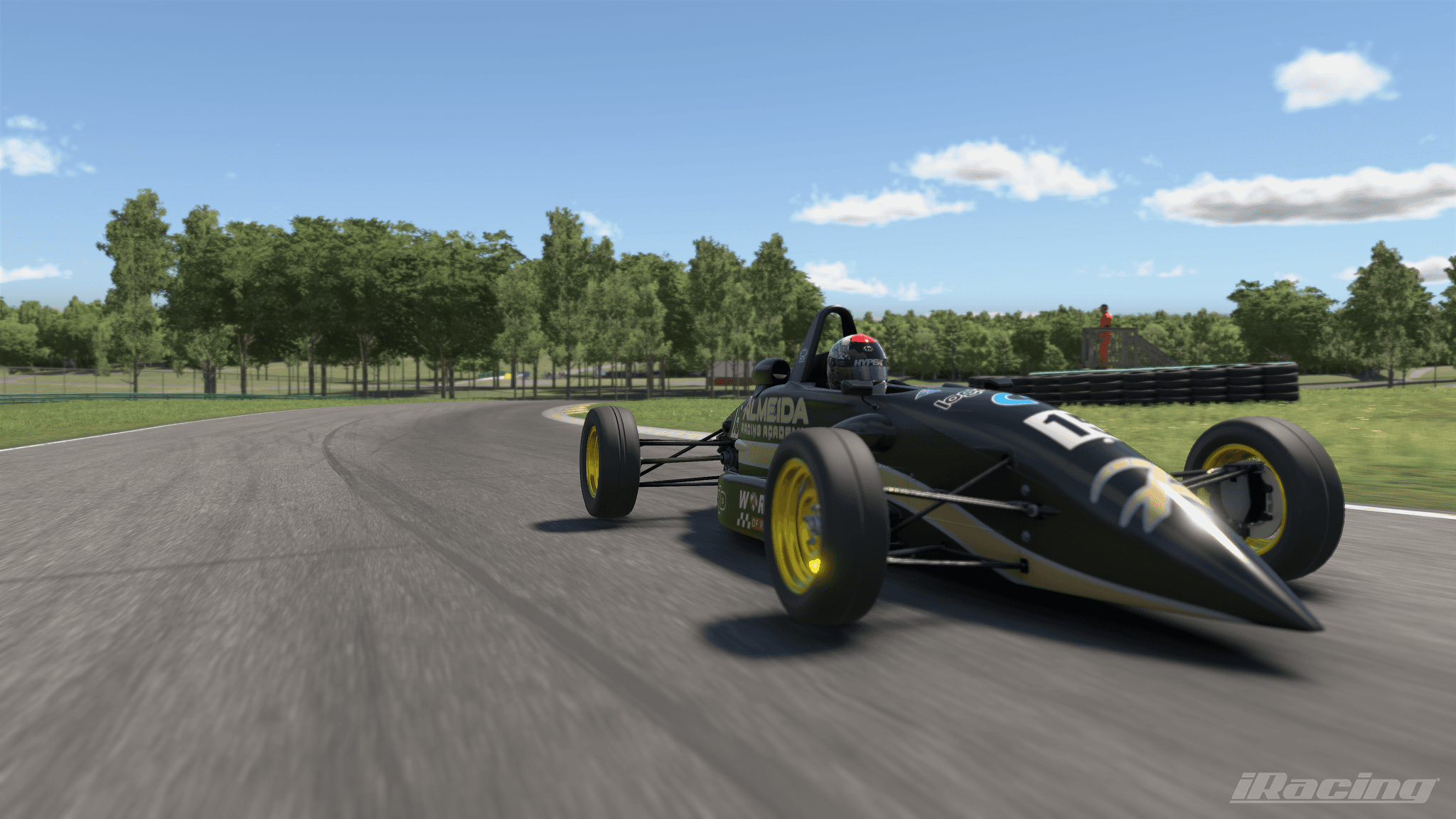
For these exercises we're going to drive in three different combos. First we're going to drive a Formula Ford FF 1600 on a centripetral circuit. Pretty much a parking lot to develop some basic fundamental skills and at the same time polish them to a level of precision that is going to be definitely necessary for the next exercises.
Initial Setup and Session Configuration
After you have created your iRacing account and installed iRacing in your simulator let's make sure that you have all the tools and settings that we're going to need for this module. To open a test session simply go to home and then click test drive. After this we're going to select the car on the track so for the first and second exercises we're going to type 1600. Select this car and then we're going to type centripetral. Centripetral circuit that's it. The default weather doesn't matter you can just click on test drive and we're going to get on track.
Essential In-Game Settings
Now once inside iRacing we got to make sure that some settings are properly set. First we go to options then right here we are going to change the shift aid to auto blip. Make sure that this is on auto blip so it helps with the radical SR8 when we drive after. Turn off the driving line and make sure that brake, assistance and throttle assistance are also off.
We also need to make sure that force it back is on with linear mode and also we need to calibrate our pedals so that we can easily accelerate 1% 50% and 100% and easily make this adjustment as well as breaking 1% 50% and 100% and easily make that adjustment.
Pedal Calibration and Brake Control
You have to be able to brake quickly and release 1 by 1%. If you still don't have that sensitivity to release the brakes that slowly make a few exercises right now you can just brake to 100% and release very slowly. You might also want to adjust your brake settings to make sure that this is feasible and that you're comfortable doing that quick application to not 100%, quick application to like 80, 90% and then releasing the brakes extremely slowly and also being able to break almost nothing like 1 to 10% with no issues because we are going to need that precision when we do the exercises.
Audio Settings
After this is all done let's go to sound and make sure that the engine sound is a little bit lower, something like -4 to -8 to allow us to hear the tire sounds a little bit more, this is just going to help us with a little bit extra feedback so that your exercises are very, very easy to understand and very easy to apply.
Setting Up Active Reset
Then we are going to control and this is where we're going to set up our active reset. Active reset is a feature in iRacing where you can literally teleport back to a point so you can practice a specific corner all the time without having to do the whole lap. It's extremely useful, it kind of reminds me a little bit of when I was studying piano and I'm able to just play 4 bars instead of having to go through the entire music before going back to the beginning. You can practice just specific segments of the track and this is extremely useful.
So right here on the control tab we're going to scroll down to have these two buttons here, active reset, save start point and active reset run. This save start point is going to determine where you're going to be teleported back to and the reset run is the one we're going to use the most because we just need to click that to then teleport. Let me show you how this works. Let's start driving, let's save a starting point here, it's making that little sound and now every time you want to get back to it we just press the other button we set up to, there you go, we just reset. This is going to be extremely useful because some of the exercises are going to be only on one corner and we're going to do that corner over and over again.
Optional Tool: RaceLab
Another very, very useful tool that you can use, it's not ultra necessary but it's going to help you compare your telemetry trace with mine is RaceLab. RaceLab Apps is a software that allows you to have real-time input telemetry, it shows your brake trace and your throttle and your steering in real-time as you're driving.
Installing and Configuring RaceLab
If you want to set it up, download it, install it and then when it's all ready you can go up here to overlays and then you go to input telemetry and you can open the overlay. So as soon as you open the overlay you can go back to driving and you can see that it's right here. If you want to move it around you can just go to unlock right here and then you can move it, you can place it anywhere you want and then you can lock it again clicking on this little button here.
Full Screen Mode Adjustment
Oh and by the way if you cannot see the input telemetry little widget when you open it and then you go to iRacing it's because iRacing is probably on full screen mode. So all you need to do is go to options and then you go to graphic and make sure that you're not on full screen. So just turn off full screen, turn off the border as well, you can drag things around and you can make it like perfectly even though it's not on full screen, you just need to drag the windows to fit your screens. And then you're going to be able to have the widget on top.
Understanding the Telemetry Display
You can quickly see here how it measures your thorough application and even your steering. I actually replaced my steering with a little logo there because it's funny and then you can see your brake trace. If you drop too fast you can see a quick drop, if you drop slowly you can see that it kind of creates that triangle shape. It's a very very useful tool to allow you to get that extra precision and just awareness of what you've been doing with your pedals.
Course Vehicle Overview
The cars I chose for this course are perfect for us to develop all these techniques. We're going to drive the Forma 1600, we're going to drive the BMW M2 and we're going to drive the Radical SR8 with a very very very loose setup that I prepared for us to work on our safety consistency and confidence. Make sure you really digest and make sure you really understand and feel everything that we're going to work on on these exercises. Have fun!
Simulator Exercises 1
Simulator Exercises 2
Simulator Exercises 3
Other Lessons
Other Lessons