
Logitech G Racing Adapter Setup Guide: PlayStation to PC Compatibility Explained
Suellio Almeida
•
Tuesday, February 14, 2023
What the Logitech G Racing Adapter Actually Does
Let's cut through the confusion.
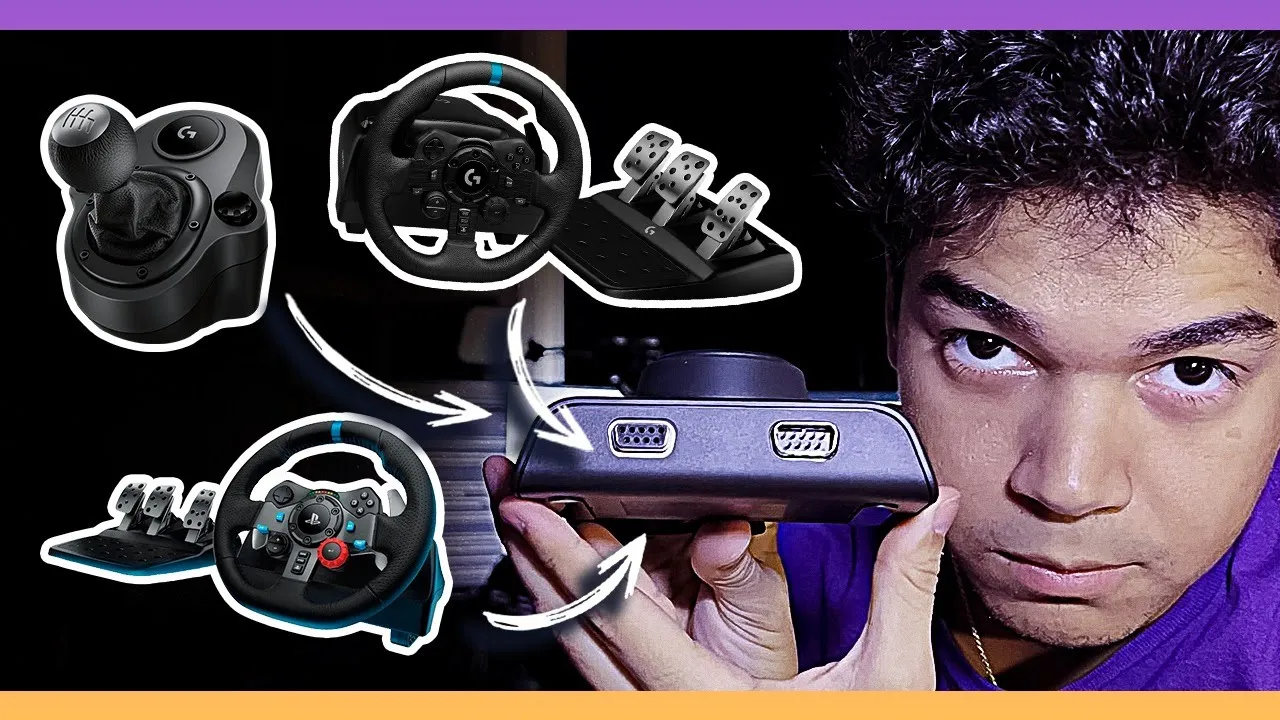
The G Racing Adapter is a compatibility bridge. It allows PlayStation-native Logitech wheel bases to work on PC.
Why does this exist? Logitech sells two versions of most wheels:
PlayStation-compatible models (work on PS and PC natively)
Xbox/PC-only models (cheaper, no PS compatibility)
If you bought the PlayStation version thinking "I'll race on PC too," you'd discover the wheel connects but doesn't function properly without this adapter. The adapter fixes that.
Alternatively, if you own a PC-only base like the G Pro and want to race on PlayStation, this adapter enables that crossover.
The catch? You still need a PlayStation controller connected during gameplay. The adapter doesn't eliminate that requirement — it just makes your wheel functional.
Who Actually Needs This Adapter
You need the G Racing Adapter if:
You own a PS-native Logitech wheel (G923, G29, G920) and want full PC functionality
You own a G Pro (PC/Xbox version) and need PlayStation compatibility
You're switching between PlayStation and PC regularly and don't want to rewire constantly
You do NOT need it if:
You bought the correct native version for your platform from the start
You only race on one platform
You own non-Logitech hardware (this is Logitech ecosystem only)
From a coaching perspective, I see this scenario constantly: driver buys gear without researching compatibility, realizes the limitation mid-purchase, then needs to solve it retroactively. Do your homework before buying.
Setup Process: Step-by-Step
Here's how to actually get this thing working. It's straightforward once you know the sequence.
Step 1: Physical connections
Plug the G Racing Adapter into an available USB port on your PC
Connect your Logitech wheel base to the adapter using the included cable
Do NOT connect the wheel directly to your PC via USB — the adapter must be the middleman
Step 2: Install Logitech G Hub software
Download from Logitech's site (required, not optional)
G Hub detects the adapter automatically
The software shows connected devices — you should see both the adapter and your wheel base listed
Step 3: Firmware updates
G Hub will prompt firmware updates for the adapter
Let it complete — this takes 2-3 minutes, don't unplug anything
Restart G Hub after updating
Step 4: PlayStation controller connection
Connect a DualShock 4 or DualSense controller to your PC via USB or Bluetooth
The controller must stay connected during racing sessions
Yes, this is annoying. No, there's no workaround.
Step 5: Sim configuration
Open your sim (iRacing, ACC, GT7 on PS, whatever you're running)
Navigate to controller settings
The wheel should now appear as a recognized input device
Calibrate steering, pedals, force feedback as usual
Common issue: Wheel appears in G Hub but sim doesn't recognize it. Solution: Unplug everything, restart PC, reconnect in order — adapter first, then wheel, then controller. 90% of setup problems come from connection sequence.
Force Feedback and Performance: What Changes
Here's what matters from a driver development perspective.
Force feedback quality: Identical to native connection. The adapter is a passthrough — it doesn't process FFB signals, just routes them. If your wheel's FFB felt good before, it'll feel the same through the adapter.
Input latency: Negligible. We're talking microseconds. You won't feel it. I've tested this with students using adapters versus direct connections — zero perceptible difference in steering response.
Button mapping: This is where it gets messy. The adapter sometimes remaps buttons compared to native connection. You might need to rebind controls in-sim. Check every button before your first race.
Compatibility across sims: Works universally. iRacing, Assetto Corsa Competizione, rFactor 2, Automobilista 2 — if the sim supports Logitech wheels, it'll work through the adapter. Gran Turismo 7 on PlayStation requires the controller active for menu navigation even with the adapter connected.
Is This Adapter Worth $60?
Depends entirely on your situation.
Worth it if: You already own the wrong wheel version and returning it isn't an option. Sixty bucks fixes a $400+ mistake.
Not worth it if: You haven't bought your wheel yet. Just buy the correct native version from the start. The price difference between PS and PC versions of the same wheel is usually less than the adapter cost.
Alternative solution: Sell your current wheel, buy the right version. You'll lose $50-100 on resale, same as the adapter cost, but you eliminate the extra hardware and connection complexity.
From a coaching standpoint, here's what actually matters: Your wheel is not your performance bottleneck. I've coached 36,000+ students. The driver using a G923 with proper technique will demolish the driver with a $2,000 direct drive who hasn't learned weight transfer.
Get your compatibility sorted, then focus on the skills that actually make you faster.
What Would Change If You Stopped Blaming Your Gear?
You've got the adapter working. Your wheel connects properly now. Force feedback feels good.
What's the next excuse?
Here's the reality: most drivers obsess over hardware because it's easier than confronting skill gaps. You can research wheel bases for weeks. You can't research your way out of inconsistent braking zones.
How many laps have you driven with intentional trail braking practice? How many corners have you analyzed in replay to understand why you're understeering mid-corner? How often do you review your brake pressure traces?
Those questions make you uncomfortable because they require work. Buying an adapter is easy.
The gap isn't your gear. It's your training method.
Every week, drivers join Almeida Racing Academy after months of YouTube tutorials and random practice. They've got decent setups. They can't figure out why they're stuck at the same iRating, making the same mistakes, losing the same tenth in the same corners.
Then they go through the Car Handling Fundamentals course. Eleven lessons that break down weight transfer, vision technique, rotation control, trail braking mechanics. Stuff you can't learn from a five-minute YouTube video because it requires progressive skill building.
Three weeks later, they're finding seconds they didn't know existed.
If you're serious about actually improving — not just buying your way to speed — create a free account. Get access to Car Handling Fundamentals, join the Discord community, see what structured training actually looks like.
The adapter solved your compatibility problem. Now solve your consistency problem.
Sim Racing Academy Membership
Everything you need to stop guessing and start getting faster.
Starting at
$25
/mo
Car Handling Online Course
4 levels, full curriculum. Aimed to get you to top 1% in driving pace.
Racecraft Online Course
Overtaking, Defending, Race Strategy
Live coaching + on-track practice
Bi-weekly pro-coach workshops (recorded — never miss one) plus on-track Pit Parties to practice racecraft with a coach.
Plus These Bonuses
13,000+ Member Community
League Racing
Advanced MX-5 Mini Course
Racing Technique Development Guide
The Motor Racing Book (260 pages)
Think & Behave Like a Pro Driver — Mini eBook
Logitech G Racing Adapter Setup Guide: PlayStation to PC Compatibility Explained
Suellio Almeida
•
Tuesday, February 14, 2023
What the Logitech G Racing Adapter Actually Does
Let's cut through the confusion.
The G Racing Adapter is a compatibility bridge. It allows PlayStation-native Logitech wheel bases to work on PC.
Why does this exist? Logitech sells two versions of most wheels:
PlayStation-compatible models (work on PS and PC natively)
Xbox/PC-only models (cheaper, no PS compatibility)
If you bought the PlayStation version thinking "I'll race on PC too," you'd discover the wheel connects but doesn't function properly without this adapter. The adapter fixes that.
Alternatively, if you own a PC-only base like the G Pro and want to race on PlayStation, this adapter enables that crossover.
The catch? You still need a PlayStation controller connected during gameplay. The adapter doesn't eliminate that requirement — it just makes your wheel functional.
Who Actually Needs This Adapter
You need the G Racing Adapter if:
You own a PS-native Logitech wheel (G923, G29, G920) and want full PC functionality
You own a G Pro (PC/Xbox version) and need PlayStation compatibility
You're switching between PlayStation and PC regularly and don't want to rewire constantly
You do NOT need it if:
You bought the correct native version for your platform from the start
You only race on one platform
You own non-Logitech hardware (this is Logitech ecosystem only)
From a coaching perspective, I see this scenario constantly: driver buys gear without researching compatibility, realizes the limitation mid-purchase, then needs to solve it retroactively. Do your homework before buying.
Setup Process: Step-by-Step
Here's how to actually get this thing working. It's straightforward once you know the sequence.
Step 1: Physical connections
Plug the G Racing Adapter into an available USB port on your PC
Connect your Logitech wheel base to the adapter using the included cable
Do NOT connect the wheel directly to your PC via USB — the adapter must be the middleman
Step 2: Install Logitech G Hub software
Download from Logitech's site (required, not optional)
G Hub detects the adapter automatically
The software shows connected devices — you should see both the adapter and your wheel base listed
Step 3: Firmware updates
G Hub will prompt firmware updates for the adapter
Let it complete — this takes 2-3 minutes, don't unplug anything
Restart G Hub after updating
Step 4: PlayStation controller connection
Connect a DualShock 4 or DualSense controller to your PC via USB or Bluetooth
The controller must stay connected during racing sessions
Yes, this is annoying. No, there's no workaround.
Step 5: Sim configuration
Open your sim (iRacing, ACC, GT7 on PS, whatever you're running)
Navigate to controller settings
The wheel should now appear as a recognized input device
Calibrate steering, pedals, force feedback as usual
Common issue: Wheel appears in G Hub but sim doesn't recognize it. Solution: Unplug everything, restart PC, reconnect in order — adapter first, then wheel, then controller. 90% of setup problems come from connection sequence.
Force Feedback and Performance: What Changes
Here's what matters from a driver development perspective.
Force feedback quality: Identical to native connection. The adapter is a passthrough — it doesn't process FFB signals, just routes them. If your wheel's FFB felt good before, it'll feel the same through the adapter.
Input latency: Negligible. We're talking microseconds. You won't feel it. I've tested this with students using adapters versus direct connections — zero perceptible difference in steering response.
Button mapping: This is where it gets messy. The adapter sometimes remaps buttons compared to native connection. You might need to rebind controls in-sim. Check every button before your first race.
Compatibility across sims: Works universally. iRacing, Assetto Corsa Competizione, rFactor 2, Automobilista 2 — if the sim supports Logitech wheels, it'll work through the adapter. Gran Turismo 7 on PlayStation requires the controller active for menu navigation even with the adapter connected.
Is This Adapter Worth $60?
Depends entirely on your situation.
Worth it if: You already own the wrong wheel version and returning it isn't an option. Sixty bucks fixes a $400+ mistake.
Not worth it if: You haven't bought your wheel yet. Just buy the correct native version from the start. The price difference between PS and PC versions of the same wheel is usually less than the adapter cost.
Alternative solution: Sell your current wheel, buy the right version. You'll lose $50-100 on resale, same as the adapter cost, but you eliminate the extra hardware and connection complexity.
From a coaching standpoint, here's what actually matters: Your wheel is not your performance bottleneck. I've coached 36,000+ students. The driver using a G923 with proper technique will demolish the driver with a $2,000 direct drive who hasn't learned weight transfer.
Get your compatibility sorted, then focus on the skills that actually make you faster.
What Would Change If You Stopped Blaming Your Gear?
You've got the adapter working. Your wheel connects properly now. Force feedback feels good.
What's the next excuse?
Here's the reality: most drivers obsess over hardware because it's easier than confronting skill gaps. You can research wheel bases for weeks. You can't research your way out of inconsistent braking zones.
How many laps have you driven with intentional trail braking practice? How many corners have you analyzed in replay to understand why you're understeering mid-corner? How often do you review your brake pressure traces?
Those questions make you uncomfortable because they require work. Buying an adapter is easy.
The gap isn't your gear. It's your training method.
Every week, drivers join Almeida Racing Academy after months of YouTube tutorials and random practice. They've got decent setups. They can't figure out why they're stuck at the same iRating, making the same mistakes, losing the same tenth in the same corners.
Then they go through the Car Handling Fundamentals course. Eleven lessons that break down weight transfer, vision technique, rotation control, trail braking mechanics. Stuff you can't learn from a five-minute YouTube video because it requires progressive skill building.
Three weeks later, they're finding seconds they didn't know existed.
If you're serious about actually improving — not just buying your way to speed — create a free account. Get access to Car Handling Fundamentals, join the Discord community, see what structured training actually looks like.
The adapter solved your compatibility problem. Now solve your consistency problem.
Sim Racing Academy Membership
Everything you need to stop guessing and start getting faster.
Starting at
$25
/mo
Car Handling Online Course
4 levels, full curriculum. Aimed to get you to top 1% in driving pace.
Racecraft Online Course
Overtaking, Defending, Race Strategy
Live coaching + on-track practice
Bi-weekly pro-coach workshops (recorded — never miss one) plus on-track Pit Parties to practice racecraft with a coach.
Plus These Bonuses
13,000+ Member Community
League Racing
Advanced MX-5 Mini Course
Racing Technique Development Guide
The Motor Racing Book (260 pages)
Think & Behave Like a Pro Driver — Mini eBook
Logitech G Racing Adapter Setup Guide: PlayStation to PC Compatibility Explained
Suellio Almeida
•
Tuesday, February 14, 2023
What the Logitech G Racing Adapter Actually Does
Let's cut through the confusion.
The G Racing Adapter is a compatibility bridge. It allows PlayStation-native Logitech wheel bases to work on PC.
Why does this exist? Logitech sells two versions of most wheels:
PlayStation-compatible models (work on PS and PC natively)
Xbox/PC-only models (cheaper, no PS compatibility)
If you bought the PlayStation version thinking "I'll race on PC too," you'd discover the wheel connects but doesn't function properly without this adapter. The adapter fixes that.
Alternatively, if you own a PC-only base like the G Pro and want to race on PlayStation, this adapter enables that crossover.
The catch? You still need a PlayStation controller connected during gameplay. The adapter doesn't eliminate that requirement — it just makes your wheel functional.
Who Actually Needs This Adapter
You need the G Racing Adapter if:
You own a PS-native Logitech wheel (G923, G29, G920) and want full PC functionality
You own a G Pro (PC/Xbox version) and need PlayStation compatibility
You're switching between PlayStation and PC regularly and don't want to rewire constantly
You do NOT need it if:
You bought the correct native version for your platform from the start
You only race on one platform
You own non-Logitech hardware (this is Logitech ecosystem only)
From a coaching perspective, I see this scenario constantly: driver buys gear without researching compatibility, realizes the limitation mid-purchase, then needs to solve it retroactively. Do your homework before buying.
Setup Process: Step-by-Step
Here's how to actually get this thing working. It's straightforward once you know the sequence.
Step 1: Physical connections
Plug the G Racing Adapter into an available USB port on your PC
Connect your Logitech wheel base to the adapter using the included cable
Do NOT connect the wheel directly to your PC via USB — the adapter must be the middleman
Step 2: Install Logitech G Hub software
Download from Logitech's site (required, not optional)
G Hub detects the adapter automatically
The software shows connected devices — you should see both the adapter and your wheel base listed
Step 3: Firmware updates
G Hub will prompt firmware updates for the adapter
Let it complete — this takes 2-3 minutes, don't unplug anything
Restart G Hub after updating
Step 4: PlayStation controller connection
Connect a DualShock 4 or DualSense controller to your PC via USB or Bluetooth
The controller must stay connected during racing sessions
Yes, this is annoying. No, there's no workaround.
Step 5: Sim configuration
Open your sim (iRacing, ACC, GT7 on PS, whatever you're running)
Navigate to controller settings
The wheel should now appear as a recognized input device
Calibrate steering, pedals, force feedback as usual
Common issue: Wheel appears in G Hub but sim doesn't recognize it. Solution: Unplug everything, restart PC, reconnect in order — adapter first, then wheel, then controller. 90% of setup problems come from connection sequence.
Force Feedback and Performance: What Changes
Here's what matters from a driver development perspective.
Force feedback quality: Identical to native connection. The adapter is a passthrough — it doesn't process FFB signals, just routes them. If your wheel's FFB felt good before, it'll feel the same through the adapter.
Input latency: Negligible. We're talking microseconds. You won't feel it. I've tested this with students using adapters versus direct connections — zero perceptible difference in steering response.
Button mapping: This is where it gets messy. The adapter sometimes remaps buttons compared to native connection. You might need to rebind controls in-sim. Check every button before your first race.
Compatibility across sims: Works universally. iRacing, Assetto Corsa Competizione, rFactor 2, Automobilista 2 — if the sim supports Logitech wheels, it'll work through the adapter. Gran Turismo 7 on PlayStation requires the controller active for menu navigation even with the adapter connected.
Is This Adapter Worth $60?
Depends entirely on your situation.
Worth it if: You already own the wrong wheel version and returning it isn't an option. Sixty bucks fixes a $400+ mistake.
Not worth it if: You haven't bought your wheel yet. Just buy the correct native version from the start. The price difference between PS and PC versions of the same wheel is usually less than the adapter cost.
Alternative solution: Sell your current wheel, buy the right version. You'll lose $50-100 on resale, same as the adapter cost, but you eliminate the extra hardware and connection complexity.
From a coaching standpoint, here's what actually matters: Your wheel is not your performance bottleneck. I've coached 36,000+ students. The driver using a G923 with proper technique will demolish the driver with a $2,000 direct drive who hasn't learned weight transfer.
Get your compatibility sorted, then focus on the skills that actually make you faster.
What Would Change If You Stopped Blaming Your Gear?
You've got the adapter working. Your wheel connects properly now. Force feedback feels good.
What's the next excuse?
Here's the reality: most drivers obsess over hardware because it's easier than confronting skill gaps. You can research wheel bases for weeks. You can't research your way out of inconsistent braking zones.
How many laps have you driven with intentional trail braking practice? How many corners have you analyzed in replay to understand why you're understeering mid-corner? How often do you review your brake pressure traces?
Those questions make you uncomfortable because they require work. Buying an adapter is easy.
The gap isn't your gear. It's your training method.
Every week, drivers join Almeida Racing Academy after months of YouTube tutorials and random practice. They've got decent setups. They can't figure out why they're stuck at the same iRating, making the same mistakes, losing the same tenth in the same corners.
Then they go through the Car Handling Fundamentals course. Eleven lessons that break down weight transfer, vision technique, rotation control, trail braking mechanics. Stuff you can't learn from a five-minute YouTube video because it requires progressive skill building.
Three weeks later, they're finding seconds they didn't know existed.
If you're serious about actually improving — not just buying your way to speed — create a free account. Get access to Car Handling Fundamentals, join the Discord community, see what structured training actually looks like.
The adapter solved your compatibility problem. Now solve your consistency problem.
Sim Racing Academy Membership
Everything you need to stop guessing and start getting faster.
Starting at
$25
/mo
Car Handling Online Course
4 levels, full curriculum. Aimed to get you to top 1% in driving pace.
Racecraft Online Course
Overtaking, Defending, Race Strategy
Live coaching + on-track practice
Bi-weekly pro-coach workshops (recorded — never miss one) plus on-track Pit Parties to practice racecraft with a coach.
Plus These Bonuses
13,000+ Member Community
League Racing
Advanced MX-5 Mini Course
Racing Technique Development Guide
The Motor Racing Book (260 pages)
Think & Behave Like a Pro Driver — Mini eBook